


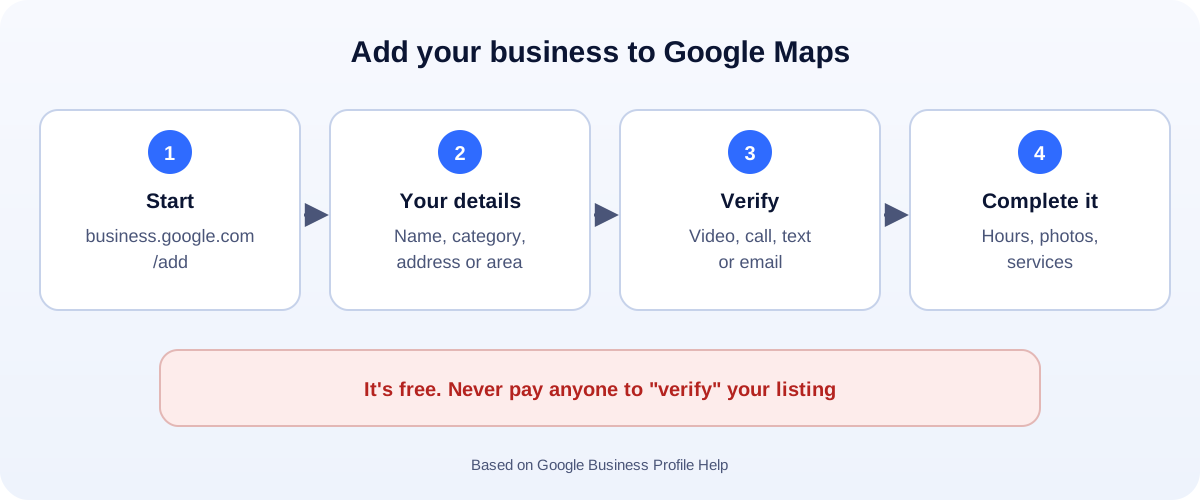
The 60-second version:
- Go to business.google.com/add and choose Add your business to Google.
- Enter your details: name, category, address (or the areas you serve) and phone.
- Already on Maps? Find it and tap Claim this business instead.
- Verify it with the method Google offers: video, call, text or email.
- Fill in everything: hours, photos, services and website. Complete profiles get more calls.
When someone nearby searches “plumber near me” or “coffee shop”, Google Maps decides who they see. Getting your business on it is free and takes about 15 minutes, plus verification. Here’s exactly how, based on Google’s own help pages, for businesses in the US, the UK and anywhere else.
Before you start
- A Google account you’ll keep long term. Ideally a business email, not a personal one you might lose.
- Your exact business name, as it appears on your sign and paperwork. No extra keywords.
- Your address or service area, and a phone number customers can call.
Google says only businesses that are eligible for a Business Profile can add or claim a location. In general, that means you meet customers in person, at your location or theirs.
Step 1: Add or claim your business
New listing:
- Go to business.google.com/add.
- Choose Add your business to Google.
- Type your business name and pick the closest category (for example “Plumber” or “Bakery”).
Already on Google Maps? Someone may have added it already.
- Find your business on Google Maps.
- Select Claim this business, then Manage now.
Step 2: Storefront or service area?
- Storefront: customers come to you, like a shop, restaurant or salon. Enter your full address.
- Service area: you go to customers, like a cleaner, electrician or mobile mechanic. List the towns or areas you serve. If you work from home, you can hide your home address.
Some businesses are both. You can show your address and your service areas.
Step 3: Verify your business
Google needs to check you’re the real owner before your profile goes fully live. Depending on your business, it may offer:
- Video recording of your business and its location.
- Phone call or text with a code.
- Email with a code.
Follow the steps for the method shown. Video verification is common now; our video verification guide shows how to record one that passes. Stuck waiting? Read Business Profile verification pending.
Step 4: Fill in your profile properly
A half-empty profile loses to a complete one. Add:
- Hours, including holiday hours.
- Photos: outside, inside, your team at work and your products. Real photos beat stock images.
- Services or products with short descriptions.
- Website and booking links. Tag them with our free UTM builder so you can see the visits in Google Analytics.
- A short description of what you do and where.
Step 5: Get reviews the right way
Reviews help you show up and help people choose you. Ask happy customers in person or by message, and make it easy with a review link or our free Google review QR code. Never buy reviews or offer rewards for them; that breaks Google’s rules. Our guide to getting more Google reviews covers what’s allowed.
Mistakes that get listings suspended
- Stuffing keywords into the business name (“Joe’s Plumbing Best Cheap Plumber London”).
- Using a virtual office or PO box as your address.
- Creating duplicate listings for the same location.
- Paying a stranger to “verify” or “rank” your listing. Adding and verifying is free.
If it happens anyway, see Google Business Profile suspended.
Go further
Your Maps listing works best with a fast website and a few local basics in place. Our local SEO checklist covers the next steps.
How UMA can help
We set up and manage Google Business Profiles and local SEO for small businesses, from verification to reviews and monthly updates. We work remotely with U.S. small businesses and others worldwide. See our SEO service or get in touch.
This guide is general information based on Google Business Profile Help. Google decides eligibility and verification for each business.