


The 60-second version:
- Search yourself: your name with your phone number, town or email.
- Open Results about you in your Google Account and request removal of results showing your phone, address or email.
- Other private info (ID numbers, bank details, doxxing)? Use Google’s removal request form.
- Turn on alerts so Google tells you when new results appear.
- Remove it at the source: ask the website itself to delete it. Google only hides it from Search.
It’s unsettling to search your name and see your home address or mobile number on some random site. The good news: Google gives you free tools to get many of these results out of Search. Here’s how to use them, and what they can’t do, based on Google’s own help pages.
What Google will remove
Google’s policies let you ask it to remove results that show:
- Contact details: your phone number, home address or email address.
- Government ID numbers.
- Bank account or card numbers.
- Images of your signature or ID.
- Private records, such as medical records.
- Confidential login details.
- Doxxing: personal information shared with threats or to cause harm.
Google generally won’t remove results from government, educational or news sites, or content in the public interest.
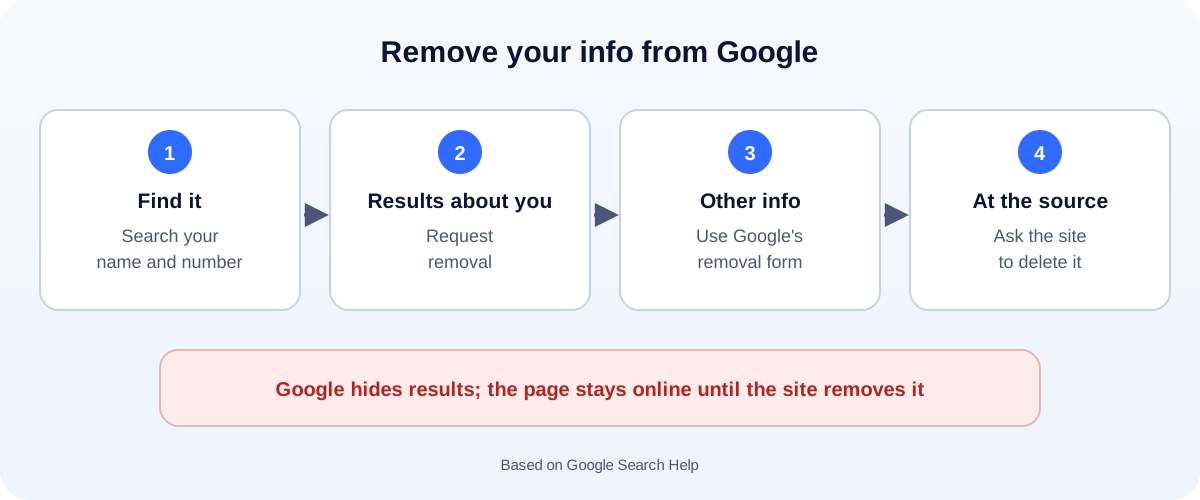
Step 1: Use Results about you
- Open your Google Account and find Results about you. You can also search Google for “results about you”.
- Enter your name and the contact details you want Google to look for.
- Google checks for matching results and lists them under To review.
- Pick a result and choose Request to remove.
You can also start from a search result itself: open the three-dot About this result panel and choose Remove result.
Google says some features are rolling out to adults in certain markets. If you don’t see the tool, use the removal request form in Step 3.
Step 2: Turn on alerts
Results about you can keep watching for new results with your details and notify you by email or in the Google app. That saves you from searching yourself every few weeks.
Step 3: For other private information
For things like ID numbers, bank details or doxxing, use Google’s personal information removal request form. Add the exact URLs and, if it helps, screenshots. Google reviews only the pages you list.
In the UK and EU, data protection law also lets you ask search engines to delist some results about you. Google has a separate legal request for this.
Step 4: Remove it at the source
This is the part most people miss. Google says removal doesn’t delete the information from the website. It can still be found through social media, links or other search engines.
To remove it completely:
- Contact the website owner and ask them to take your details down.
- People-search and data broker sites usually have an opt-out page. Look for “opt out” or “remove my information” at the bottom of the site.
- Once the page changes, Google can refresh the outdated result.
Protect your details going forward
- Lock down social profiles so your phone and address aren’t public.
- Use a separate email for shopping and sign-ups.
- Business owner? Use a business number and address on your website and Google Business Profile, not your home details.
Business owners: control what people find
When customers search your business, you want them to find your website and Business Profile, not old or wrong information. A clear website and a well-kept Google Business Profile push the right results up. Check how your pages look in search with our free Google SERP preview tool.
How UMA can help
We help small businesses take control of what shows up in Google with SEO, a strong website and a well-managed Business Profile. We work remotely with U.S. small businesses and others worldwide. See our SEO service or get in touch.
This guide is general information based on Google Search Help. Google decides each request, and features vary by country.