

The 60-second version:
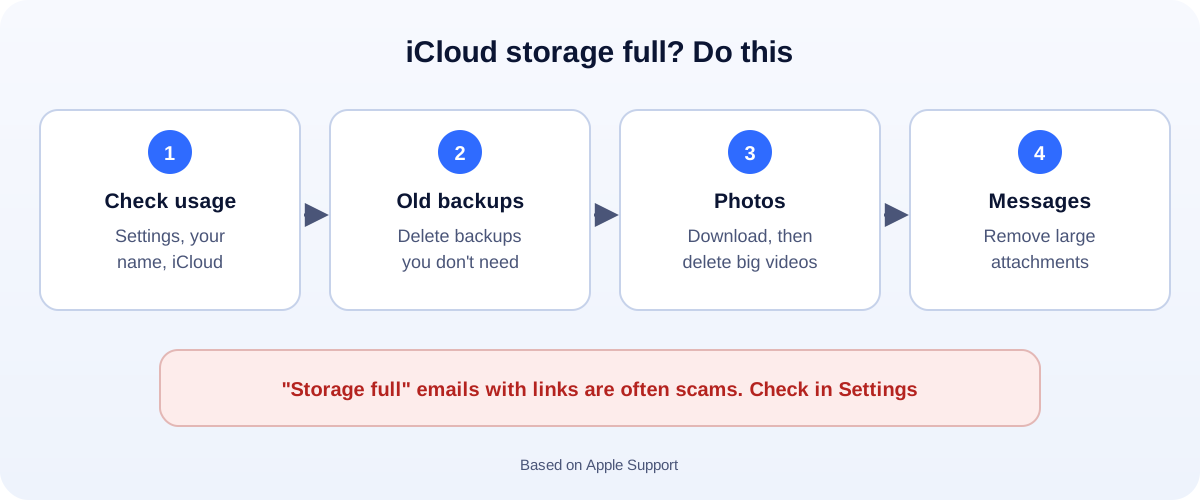
- Check what’s using space: Settings, tap your name, then iCloud.
- Delete old backups from phones and iPads you no longer use.
- Photos and videos: download the ones you want to keep, then delete big videos.
- Messages: remove large attachments.
- Got an email saying iCloud is full? Don’t tap its link. Check in Settings instead.
That “iCloud storage is full” message keeps popping up, and every time you ignore it, your iPhone stops backing up. Here’s what actually matters, what to delete first, and how to spot the fake emails that copy this warning. It’s all based on Apple Support.
What stops working when iCloud is full
Apple gives every account 5 GB free. When you go over, Apple says:
- Your device stops backing up to iCloud.
- New photos and videos stop uploading to iCloud Photos.
- iCloud Drive and other apps stop staying up to date across your devices.
- You can’t send or receive email with your iCloud address.
Step 1: See what’s using your space
On your iPhone or iPad, open Settings, tap your name, then iCloud. You’ll see a bar showing what uses the most space. On iOS 17 and later, look for Recommended for You, which suggests what to clean up.
Step 2: Delete old backups
Old backups from phones you sold or replaced can be huge. In iCloud storage settings, open Backups, choose an old device and delete its backup. Apple keeps a backup for 180 days after you turn off iCloud Backup for that device.
You can also stop backing up apps you don’t care about.
Step 3: Photos and videos
This is usually the biggest one, so go carefully. With iCloud Photos on, Apple says deleting a photo removes it from every device signed in to your Apple Account.
- Download the photos and videos you want to keep to a computer or external drive.
- Delete large videos and screen recordings first. They take far more space than photos.
- Items in Recently Deleted don’t count toward your storage.
Step 4: Messages and iCloud Drive
- Messages: delete large attachments or old conversations. Attachments use the most space.
- iCloud Drive: delete files and folders you don’t need.
- Mail: delete old emails with attachments.
Step 5: Or pay a little for more
If you’d rather keep everything, iCloud+ plans add more storage. Only upgrade from Settings on your device, never from a link in an email.
The fake “iCloud storage full” email
This is a common scam. The email looks like Apple, says your storage is full or your photos will be deleted, and links to a page asking for your Apple Account password or card details.
How to tell:
- Check in Settings, not in the email. No warning there means the email was fake.
- Look at the sender’s address. It often doesn’t match Apple at all.
- Hover over the link on a computer. A fake page won’t be on apple.com.
- Apple never asks you to turn off security features like two-factor authentication to fix storage.
Forward suspicious emails to reportphishing@apple.com. If you already typed your password into a fake page, change your Apple Account password straight away. Locked out? See our Apple Account locked guide.
Run a business from your iPhone?
Product photos and client files can fill iCloud fast. Shrink images before you save or send them with our free image compressor, and keep important business files in a proper shared drive, not just your phone. More help: all our account recovery guides.
How UMA can help
We build websites and apps for small businesses and set up file storage and accounts that don’t depend on one phone. We work remotely with U.S. small businesses and others worldwide. See our app development service or get in touch.
This guide is general information based on Apple Support. Apple’s menus can change between iOS versions.