


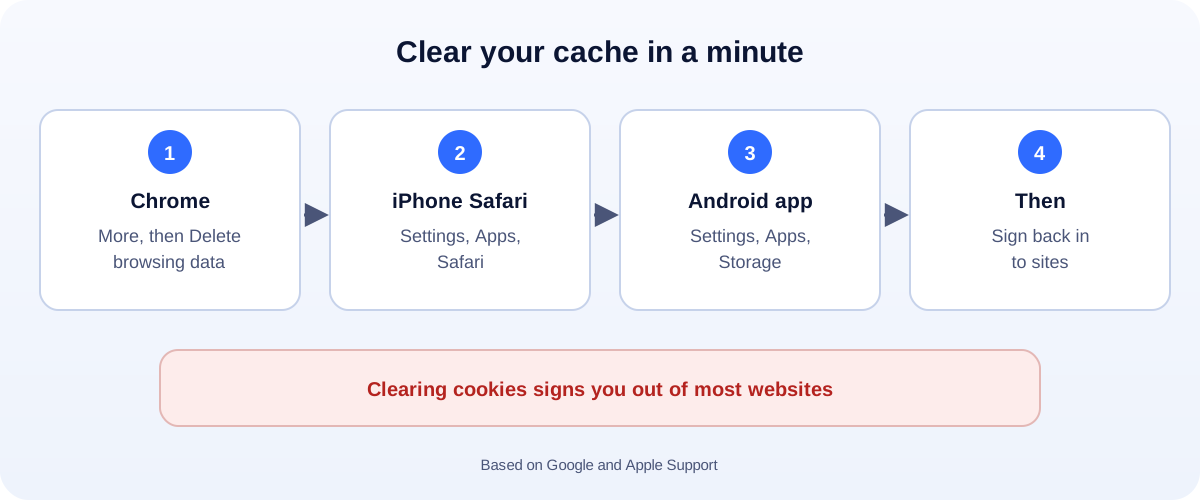
The 60-second version:
- Chrome (computer): More (three dots), then Delete browsing data.
- Safari on iPhone: Settings, Apps, Safari, then Clear History and Website Data.
- Android app acting up: Settings, Apps, the app, Storage, then Clear cache.
- Keyboard shortcut on Windows: Ctrl + Shift + Delete in most browsers.
- Afterwards: you may need to sign back in to websites.
A page won’t load, a website looks broken, or you keep seeing an old version of something. Clearing your cache fixes this more often than you’d think. Here’s how to do it on every common device, based on Google’s and Apple’s own help pages.
What the cache is (in plain English)
To load sites faster, your browser saves copies of pages and images. That’s the cache. Cookies are small files that remember things like your login and settings.
When those saved copies get out of date or corrupted, pages can break. Clearing them forces the site to load fresh.
Chrome on a computer
- Open Chrome.
- Select More (the three dots, top right), then Delete browsing data.
- Choose a time range. Last hour is often enough; All time clears everything.
- Tick Cached images and files. Tick Cookies and other site data too if you want a full reset.
- Select Delete data.
Google notes that some sites may seem slower at first, because images have to load again.
Chrome on Android or iPhone
- Open Chrome and tap More (three dots).
- Tap Delete browsing data (on some versions, under History).
- Pick a time range and what to delete, then confirm.
Safari on iPhone and iPad
Clear everything (history, cache and cookies):
- Open Settings, then Apps, then Safari.
- Tap Clear History and Website Data.
- Pick a time range and confirm.
Keep your history, clear only cache and cookies:
- Settings, Apps, Safari, then Advanced, then Website Data.
- Tap Remove All Website Data, then Remove Now.
Apple keeps your AutoFill information when you clear Safari’s history.
An Android app that won’t work
Apps have their own cache, too:
- Open Settings, then Apps.
- Choose the app that’s misbehaving.
- Tap Storage, then Clear cache.
Clear cache is safe. Clear storage (or Clear data) resets the app and signs you out, so try cache first.
Edge, Firefox and other browsers
On Windows, press Ctrl + Shift + Delete in most browsers to open the clearing options. On a Mac, look in the browser’s Settings or History menu.
What you lose (and don’t)
- Cached files: safe to clear. Pages just load a little slower the first time.
- Cookies: you’ll be signed out of most websites and may need to accept cookie banners again.
- Saved passwords: only removed if you specifically tick them. Leave that box empty.
Still not working?
If a site is still broken after clearing the cache, try a private window, another browser or another device. If it fails everywhere, the problem is probably the website, not you. Phone acting strangely beyond one site? Read how to tell if your phone is hacked. Running out of space instead? See iCloud storage full.
Website owners: why visitors see old pages
If customers keep seeing an old version of your site, it’s usually caching on the server or CDN, not just their browser. A well-built site updates file names when they change, so visitors always get the latest version. Check how your pages look in Google with our free SERP preview tool.
How UMA can help
We build fast, modern websites for small businesses, set up so updates show up for every visitor straight away. We work remotely with U.S. small businesses and others worldwide. See our website design service or get in touch.
This guide is general information based on Google and Apple Support. Menu names can change between versions.