
The 60-second version:
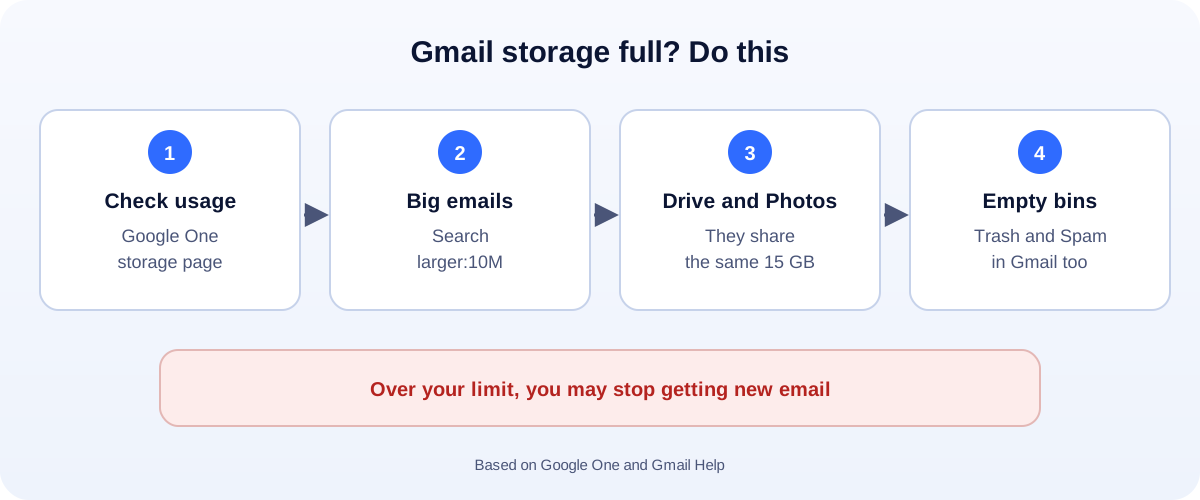
- Check what’s using space on the Google One storage page.
- Find big emails: search Gmail for larger:10M.
- Remember Drive and Photos: they share the same space as Gmail.
- Empty Trash and Spam, or nothing is freed.
- Still short? Download what you want to keep, then delete, or buy more storage.
“You’re running out of storage.” When Gmail shows that, it’s easy to panic and start deleting at random. Don’t. The space often goes to a few big files you forgot about. Here’s how to find them quickly, based on Google’s own help pages.
Why Gmail fills up
Your Google Account storage is shared by three services:
- Gmail: every email and attachment, including Spam and Trash.
- Google Drive: files, PDFs, videos and app backups.
- Google Photos: photos and videos backed up from your phone.
So your inbox might be tidy while Photos quietly uses most of the space.
What happens when it’s full
Google says that when you’re over your limit:
- Your ability to send and receive email in Gmail can be affected.
- You can’t upload new files to Drive, and shared files can’t be edited until you free up space.
- Photos and videos stop backing up.
- You can still sign in and see what’s there.
If you stay over the limit for 2 years or more, Google says your content may be removed, after at least 3 months’ notice.
Step 1: See what’s using the space
Open the Google One storage page (one.google.com/storage) while signed in. It shows how much Gmail, Drive and Photos each use, and offers a cleanup tool that groups large files, emails with attachments and items in the bin.
Step 2: Find the biggest emails
Type these into the Gmail search box:
- larger:10M finds emails over 10 MB.
- has:attachment larger:5M finds attachments over 5 MB.
- older_than:2y has:attachment finds old emails with attachments.
Select what you don’t need and delete it. Save any attachment you want to keep first.
Step 3: Clear Drive and Photos
- Drive: sort by storage used to see the largest files first. Old videos, zip files and duplicate PDFs are common culprits.
- Photos: long videos and screen recordings take far more space than photos. Download the ones you want to keep, then delete them.
Step 4: Empty Trash and Spam
Deleted emails sit in Trash until it’s emptied. Spam also counts. Empty both. Google warns that deleted Gmail and Drive items are permanently deleted and can’t be recovered, so be sure before you do.
Step 5: Keep it from filling up again
- Unsubscribe from newsletters you never read.
- Turn off Photos backup for apps like WhatsApp if you don’t need it in the cloud.
- Share big files as links instead of sending them as attachments.
- Pay for more space with Google One if you’d rather keep everything.
Using Gmail for your business?
A free Gmail account that runs out of space can stop customer emails reaching you. Use email on your own domain for the business, and keep an eye on storage. Compress images before you send them with our free image compressor. Locked out completely? See our Gmail account recovery guide.
How UMA can help
We set up business email, websites and simple systems that don’t fall over when an inbox fills up. We work remotely with U.S. small businesses and others worldwide. See our email marketing service or get in touch.
This guide is general information based on Google One and Gmail Help. Storage limits and plans can change, so check Google’s pages for the latest.