
The 60-second version:
- Open our free QR code generator. No sign-up.
- Choose what it does: website link, Wi-Fi, phone call, text or email.
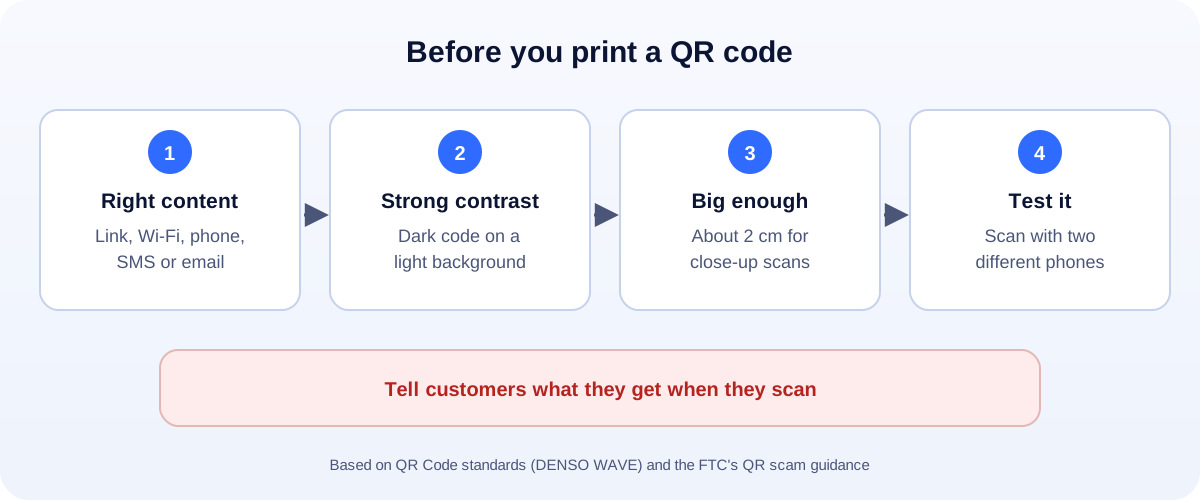
- Keep strong contrast: a dark code on a light background.
- Download SVG for print, PNG for screens.
- Test it on two phones before you print 500 copies.
QR codes are everywhere again: menus, counters, flyers, packaging and business cards. Making one takes a minute. Making one that works every time takes a few more. Here’s how.
Static vs dynamic QR codes
This is the bit most “free QR” websites don’t explain.
- Static QR code: the link or text is stored inside the code. It works forever, with no account. You just can’t change it after printing. Our generator makes static codes.
- Dynamic QR code: the code points to the provider’s server, which then sends people to your link. You can change the destination and see scan counts, but many stop working if you stop paying.
For most small businesses, a static code plus a tracked link is the best of both. Add campaign tags to your link with our UTM builder first, and Google Analytics shows how many people scanned.
Ideas that actually help customers
| QR code type | Where to use it |
|---|---|
| Website link | Menus, price lists, booking pages, product manuals |
| Wi-Fi | Café tables, waiting rooms, Airbnb welcome cards |
| Google reviews | Counter, receipts, follow-up cards. Use our Google review QR code tool |
| WhatsApp chat | Shop windows, flyers, delivery bags. Use our WhatsApp link generator |
| Phone call | Vans, signs and posters |
| Email or text | “Text JOIN for offers”, support cards |
How to make a Wi-Fi QR code
- In the QR code generator, choose Wi-Fi.
- Type the network name exactly as it appears, including capital letters.
- Add the password and pick the security type (most networks use WPA/WPA2).
- Download and print it.
Guests point their camera at it and join, without asking you for the password. Tip: use a separate guest network, not the one your till or office runs on.
Design and print tips
- Contrast first. Dark on light scans best. Avoid light codes on dark backgrounds and pastel-on-pastel.
- Leave a margin. The empty border around the code (the “quiet zone”) helps phones find it. Don’t crop it.
- Size it for the distance. About 2 cm (0.8 inch) wide is a common minimum for menus and cards. Posters need much bigger codes.
- Error correction. QR codes can still be read when part is damaged. DENSO WAVE, the company that invented the QR code, describes four levels: about 7% (L), 15% (M), 25% (Q) and 30% (H). Use M for most things and Q for print that might get scuffed.
- Say what happens. “Scan for the menu” or “Scan to join Wi-Fi” gets more scans than a bare code.
- Use SVG for print. It stays sharp at any size.
Keep customers safe from QR scams
The FTC has warned that scammers cover real QR codes with fake ones, for example on parking meters, and send QR codes by text or email to steal logins. Protect your customers and your name:
- Print your web address under the code, so people can check it matches.
- Use tamper-evident stickers or laminate codes in public places.
- Check your codes regularly for stickers placed on top.
- Never ask for payments or passwords through a QR code on a flyer.
Track how many people scan
- Build your link with the UTM builder, for example source
qrand campaigntable-menu. - Put that link in your QR code.
- In Google Analytics, check traffic by campaign to see scans from each place.
Use a different campaign name for each location (tables, window, flyer), and you’ll know which one works.
How UMA can help
We design menus, flyers and packaging with QR codes that work, and connect them to tracking so you can see what brings customers in. We work remotely with U.S. small businesses and others worldwide. See our branding and graphic design service or get in touch.
Error correction levels are from DENSO WAVE’s QR Code documentation; scam advice is based on FTC consumer alerts.