


The 60-second version:
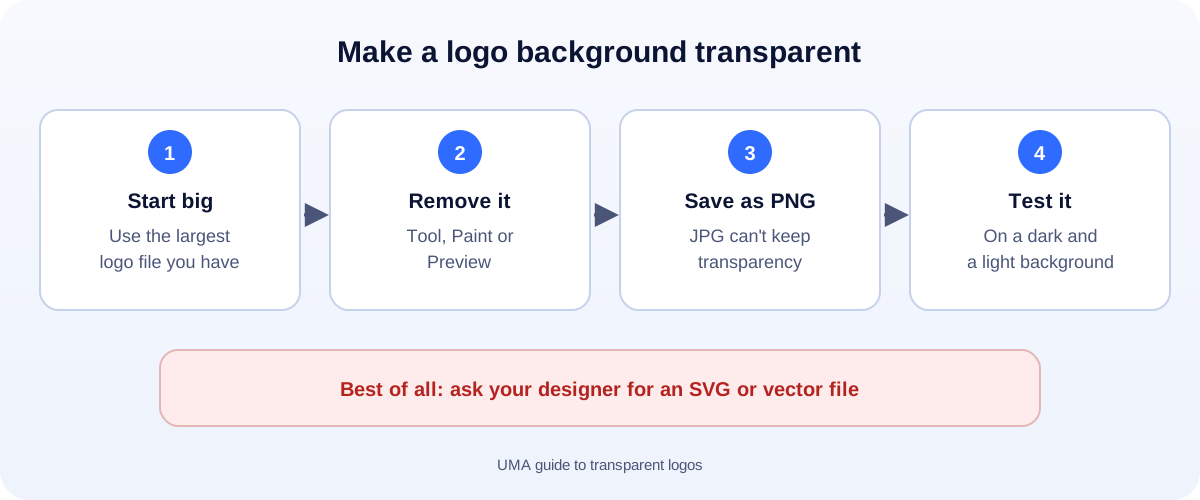
- Use the biggest logo file you have. Small logos give rough edges.
- Remove the background with our free background remover (choose Products and objects), Mac Preview, Windows Paint or PowerPoint.
- Save as PNG. JPG can’t be transparent.
- Test it on a dark and a light background.
- Best of all: ask your designer for an SVG or other vector file.
That white box around your logo looks fine on a white page. Then you put it on a coloured header, a photo or a dark email footer, and it sticks out like a sticker. Here’s how to fix it for free.
Why logos get a white box
Two common reasons:
- The file is a JPG. JPG files can’t store transparency, so empty areas are always filled in, usually with white.
- The logo was exported with a background, for example from a document or a screenshot.
The fix is the same: remove the background, then save in a format that keeps transparency. That means PNG, WebP or SVG.
Method 1: Our free tool (any device)
- Open the background remover.
- Choose Products and objects.
- Add your logo.
- Leave the background on Transparent.
- Click Download PNG.
The logo stays on your device the whole time.
Method 2: Mac Preview (great for flat colours)
- Open the logo in Preview.
- Show the markup toolbar and click Instant Alpha.
- Drag over the white background. Preview selects similar colours next to it.
- Press Delete. Repeat for any gaps inside letters, like the middle of an “o”.
- Save as PNG.
Preview also has a one-click Remove Background button, which works well on photos.
Method 3: Windows 11 Paint
- Open the logo in Paint.
- Click Remove background.
- Save as PNG.
Method 4: PowerPoint (simple one-colour backgrounds)
- Insert the logo into a slide.
- Go to Picture Format > Color > Set Transparent Color.
- Click the white background.
- Right-click the logo and choose Save as Picture, then pick PNG.
This works best when the background is one flat colour.
Clean up the edges
- Start big. A 2000-pixel logo gives much smoother edges than a 200-pixel one.
- Watch the inside of letters. The holes in “a”, “e”, “o” and “B” are easy to miss.
- Look for a light halo on a dark background. If you see one, start again from a bigger file.
- Keep a version with a background too, for places that need it, like profile pictures.
Which format to use where
| Where | Best format |
|---|---|
| Website header and footer | SVG (sharp at any size), or PNG |
| Social media profile and posts | PNG |
| Email signature | PNG, small. Try our email signature generator |
| Print (cards, flyers, signs) | Vector (SVG, PDF, AI or EPS) |
| Documents and slides | PNG |
Ask for the right files
If someone designed your logo, ask them for a logo pack: SVG, PNG with a transparent background, a white version for dark backgrounds, and a square icon. It saves you from fixing this again and again.
No logo yet, or yours looks dated? A clean logo with the right files is one of the cheapest upgrades a small business can make.
How UMA can help
We design logos and brand kits for small businesses, with every file you need for web, social and print. We work remotely with U.S. small businesses and others worldwide. See our branding and graphic design service or get in touch.
Mac, Windows and PowerPoint steps are based on Apple Support and Microsoft Support. Menus can change between versions.