

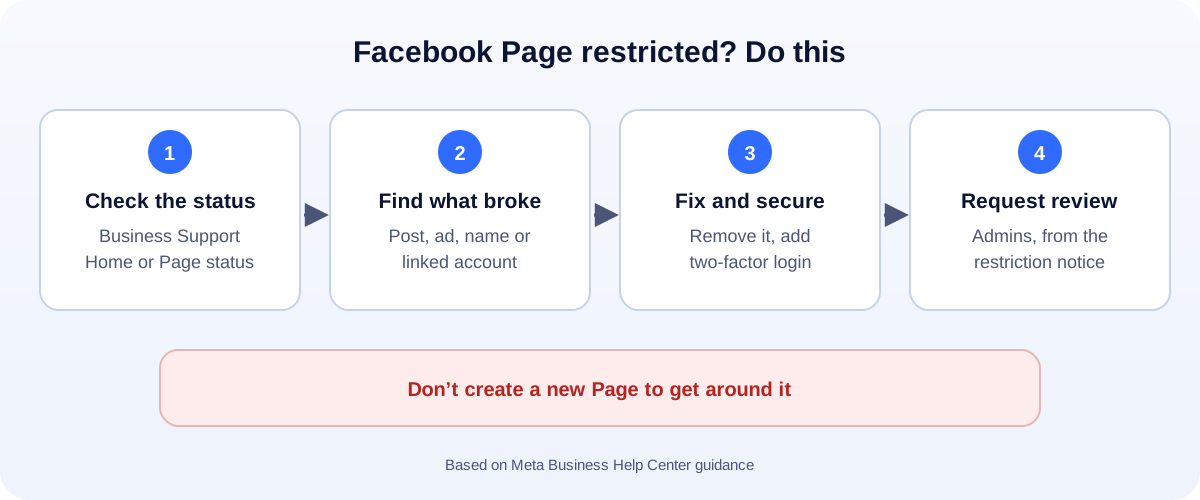
The 60-second version:
- Check the real reason in Business Support Home (facebook.com/business-support-home) or your Page’s status in the Professional dashboard.
- Find what triggered it: a post, an ad, the Page name or details, or a linked admin account.
- Fix it and secure the Page: remove the problem, correct the details, and turn on two-factor login for all admins.
- Request a review from the restriction notice, if Meta offers one.
- Don’t create a new Page to get around it.
A restricted Page can mean no ads, no monetization, or reduced reach, and the notice is often vague. Here’s how to find out what’s really going on and fix it.
Step 1: Find out exactly what’s restricted
There are a few different restrictions, and the fix depends on which one you have:
- Restricted from advertising: the Page can’t run ads.
- Monetization restricted: the Page can’t earn from content, for example in-stream ads or subscriptions.
- Reduced distribution or warnings: posts reach fewer people after violations.
- A restricted admin: if your personal profile is restricted, you may be blocked from advertising for every Page you manage.
Check Business Support Home at facebook.com/business-support-home. Meta describes it as the place to see the status of your business portfolios, ad accounts and Pages, learn what you can do if something is restricted, and request a review. For content and monetization issues, also check the Page status and Monetization sections of the Page’s Professional dashboard.
Step 2: Match the reason to the fix
Ads or posts that broke the rules
Remove or edit the content Meta flagged. Read the specific policy named in the notice. Be extra careful with health, finance, housing, employment and “before and after” claims.
Page name, category or details
A Page name that doesn’t match the real business, or misleading details, can cause problems. Make sure the name, category, website and contact details are accurate.
Hacked or risky admin accounts
Restrictions often follow a hacked admin profile (here is how to recover a hacked Facebook account). Turn on two-factor authentication for every admin, remove people you don’t recognise, and give agencies partner access through your Business portfolio instead of your login.
Monetization rules
Pages that post unoriginal or reused content, clickbait, or misleading information can lose monetization. Focus on original content you made or have the rights to.
Step 3: Request a review
From the restriction notice in Business Support Home or Page status, choose Request review (if it’s offered) and follow the steps. Meta may ask you to confirm your identity. Admins need to do this.
Keep it simple and honest if there’s a text box: what happened and what you fixed. Then wait. Most reviews for advertising restrictions take a day or two, though some take longer.
If your ad account is restricted too, see our step-by-step guide to a disabled Facebook ad account.
While you wait
- Keep posting helpful, original content, so the Page stays active.
- Send customers to channels you control: your website, Google Business Profile and WhatsApp. Our free WhatsApp link generator helps.
- Check that your Instagram account is secure too, since the two are often linked.
How to keep your Page in good standing
- Two-factor login for all admins, and regular access reviews.
- Original content, not reposts from other Pages.
- Accurate Page details that match your website and Google profile.
- Honest ads with landing pages that match the promise.
- Measure what works with our engagement rate calculator, instead of chasing tricks.
How UMA can help
We manage Facebook Pages and ads for small businesses, keep accounts secure, and help fix restrictions where it’s possible. We work remotely with U.S. small businesses and others worldwide. See our social media marketing service or get in touch.
Only Meta decides whether a restriction is lifted. This guide is general information based on Meta’s Business Help Center.