


The 60-second version:
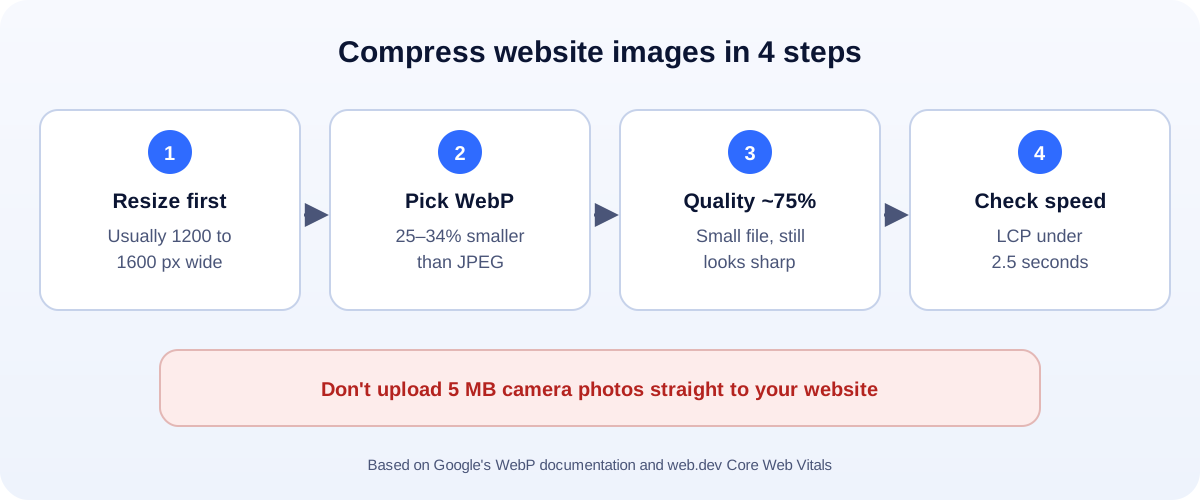
- Resize first. Most website images don’t need to be wider than 1200 to 1600 px.
- Use WebP where you can. Google says it’s 25 to 34% smaller than JPEG at the same quality.
- Quality around 75% is the sweet spot for most photos.
- Need a hard limit (like 100 KB for a form)? Use the target size in our free image compressor.
- Check your speed in Google PageSpeed Insights afterwards.
A photo straight from your phone can be 4 MB or more. Put ten of those on a page, and visitors on mobile data wait, and many leave. The fix takes minutes and costs nothing.
Why image size matters
- Speed. Images are often the heaviest part of a page. Smaller files load faster.
- Google. Page speed is part of Google’s page experience signals. One key measure, Largest Contentful Paint (LCP), is often a big image. Google’s web.dev guidance says a good LCP is 2.5 seconds or less.
- Sales. Product and landing pages that load fast keep more people on them.
- Limits. Job portals, government forms and email services often cap file size.
Step 1: Resize to the size you actually need
This saves the most. A 4000-pixel photo shown in a 1200-pixel space wastes about 90% of its pixels.
| Where the image goes | Width to aim for |
|---|---|
| Full-width banner or hero | 1600 to 2000 px |
| Blog post image | About 1200 px |
| Product image | 1200 to 2048 px (square for most stores) |
| Thumbnail or team photo | 400 to 800 px |
| About 600 to 800 px |
Step 2: Pick the right format
- WebP: best for most website images. Smaller than JPEG and PNG, and it supports transparency.
- JPG: works everywhere. Fine for photos when WebP isn’t an option.
- PNG: for logos and graphics with sharp edges or transparency. Too heavy for photos.
- SVG: for logos and icons. Tiny and sharp at any size.
Google’s figures: WebP lossy images are 25 to 34% smaller than comparable JPEGs, and lossless WebP images are 26% smaller than PNGs.
Step 3: Compress (the free way)
- Open our image compressor.
- Set the maximum width (1600 px is a good default).
- Choose WebP, or leave it on Auto.
- Keep quality around 75%, or pick a target size like under 100 KB or under 1 MB.
- Add your images. You can add many at once.
- Download them, then upload to your site.
Your photos are compressed in your browser. Nothing is uploaded to us.
Step 4: Check it worked
- Run your page through Google PageSpeed Insights and look at LCP.
- Look for warnings like “Properly size images” or “Serve images in modern formats”.
- Open the page on your phone, on mobile data, and see how it feels.
Extra wins
- Name files clearly, like
blue-ceramic-mug.webp, notIMG_4032.jpg. - Write alt text that describes the image. It helps accessibility and image search.
- Lazy-load images further down the page, so the top loads first. Most modern website builders do this for you.
- Don’t let your site enlarge small images. Upload them at the size they’ll show.
- Remove backgrounds for clean product shots with our background remover, then compress.
Using WordPress, Shopify or Wix?
These platforms often create smaller versions of your images automatically. That helps, but it still pays to upload sensibly sized files. A 6 MB original still slows down uploads, backups and some themes.
How UMA can help
We build fast websites and fix slow ones: image sizes, formats, caching and Core Web Vitals, so pages load quickly on phones. We work remotely with U.S. small businesses and others worldwide. See our website design service and SEO services, or get in touch.
WebP figures are from Google’s WebP documentation; the LCP threshold is from Google’s web.dev Core Web Vitals guidance.