


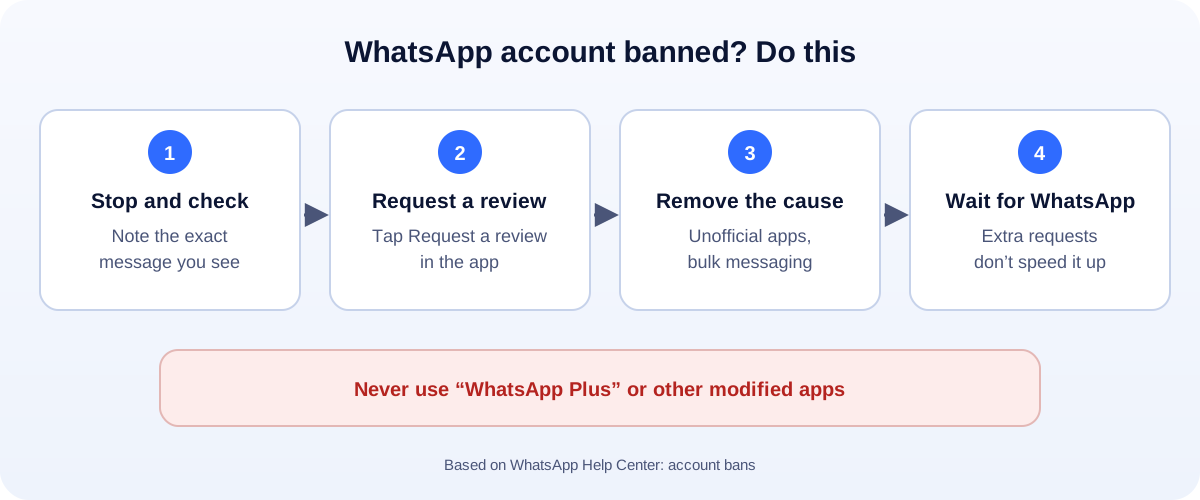
The 60-second version:
- Read the message. A ban usually says “This account is not allowed to use WhatsApp.”
- Tap “Request a review” in the app and follow the steps.
- Remove the cause: delete unofficial apps (like “WhatsApp Plus”), and stop bulk messaging.
- Wait. WhatsApp says sending more requests doesn’t speed it up.
- Next time, only message people who agreed to hear from you.
For many businesses in Pakistan, the UAE and Saudi Arabia, WhatsApp is the shop counter. A banned number means missed orders and confused customers. Here’s how to handle it.
Why WhatsApp bans business numbers
WhatsApp bans accounts when it believes they break its Terms of Service: for example spam, scams, or activity that puts users at risk. For businesses, the usual triggers are:
- Bulk messages to people who never asked for them, especially from a new number.
- Lots of people blocking or reporting your number.
- Unofficial or modified apps such as “WhatsApp Plus” or “GB WhatsApp”, or tools that automate the normal app.
- Adding people to groups without their permission.
- Broadcasts copied word for word to hundreds of contacts.
Step 1: Check what kind of ban it is
Open WhatsApp on the banned number and read the exact message.
- Temporary bans often come with a countdown, and are common after using unofficial apps. Remove the unofficial app, install the official one from the App Store or Google Play, and wait for the timer to end.
- Permanent bans say the account isn’t allowed to use WhatsApp, and usually offer a review.
Step 2: Request a review
In the app, tap Request a review and follow the steps. WhatsApp will look at the account and tell you the result in the app.
Tips:
- Request once. WhatsApp says more requests don’t make the review faster.
- Be honest if you’re asked for details: “This is our shop’s customer service number. We reply to customers who message us first.”
- Don’t switch to a new number to message the same people the same way. That usually ends the same way.
Step 3: Fix the cause
- Delete unofficial apps and reinstall the official WhatsApp Business app.
- Stop cold messaging. Only message customers who contacted you or opted in.
- Clean your broadcast lists. Remove people who never reply or who asked to stop.
- Make your messages personal and useful, not identical blasts.
Step 4: Protect your customers while you wait
- Put your phone number, email and website on your Facebook, Instagram and Google Business Profile.
- If you get a new number later, update your click-to-chat links. Our free WhatsApp link generator makes a new link and QR code in seconds.
How to keep your number safe
- Use the official apps only: WhatsApp Business for small teams, or the official WhatsApp Business Platform (API) for automation and higher volumes.
- Get permission first. A simple “Can we send you order updates on WhatsApp?” goes a long way.
- Send fewer, better messages. Relevance beats volume.
- Use approved templates on the API for marketing and updates. Read our guide to WhatsApp Business app vs API.
- Know the costs before you scale up messaging: see our WhatsApp API pricing guide and free WhatsApp API cost calculator.
How UMA can help
We set up WhatsApp the safe way: the right app or the official API, opt-in flows, templates and automations that customers welcome. See our app development and automation service or message us.
Only WhatsApp decides whether a banned account is restored. This guide is general information based on WhatsApp’s Help Center.